Customizable technology categories
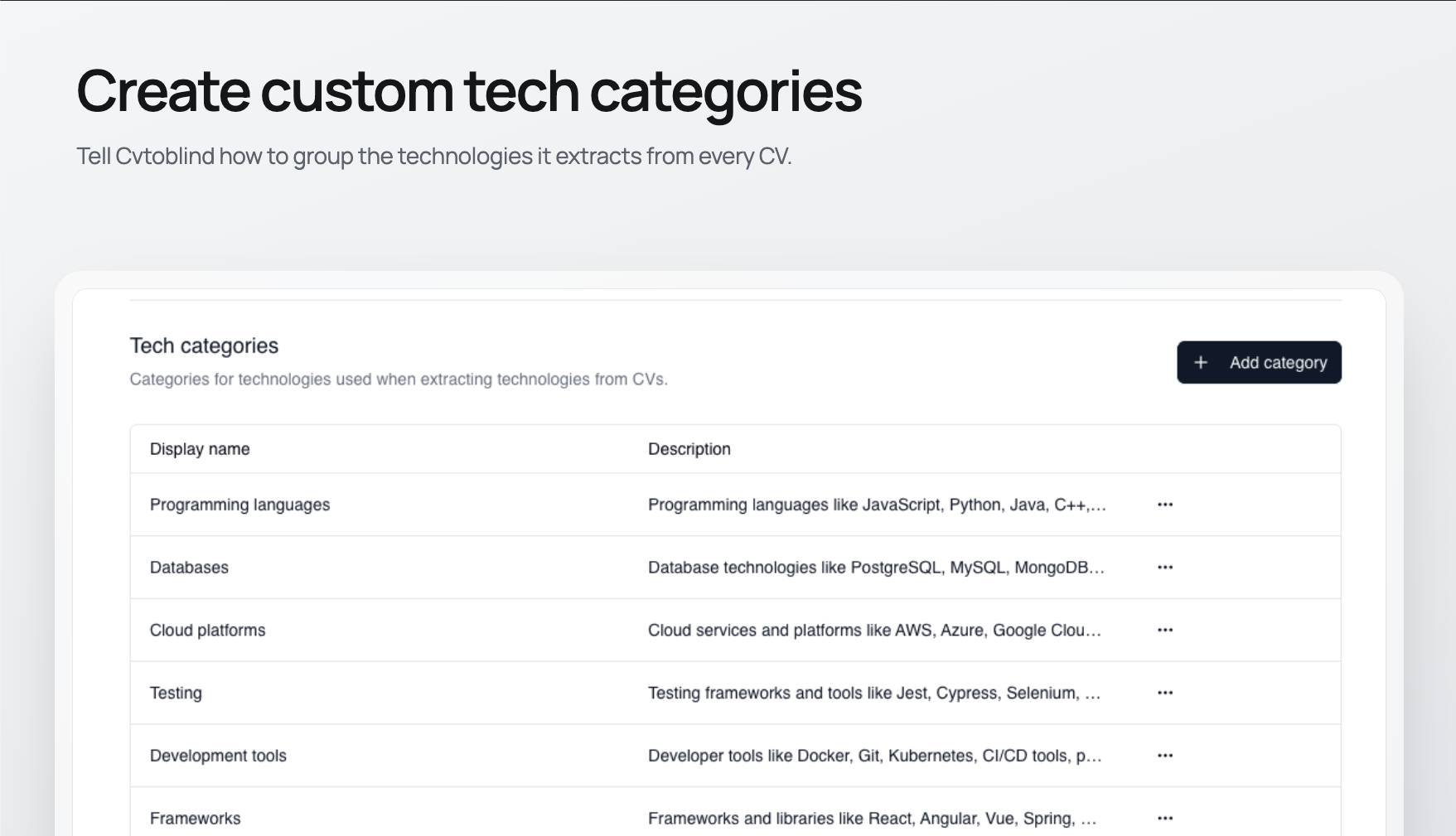
Every organization thinks about technical skills differently — some teams want a single "Cloud & Infra" bucket, others split it into six.
Until now, CVtoBlind sorted extracted technologies into a fixed, one-size-fits-all list. That changes today: technology categories are now fully customizable, per organization.
Build your own categories
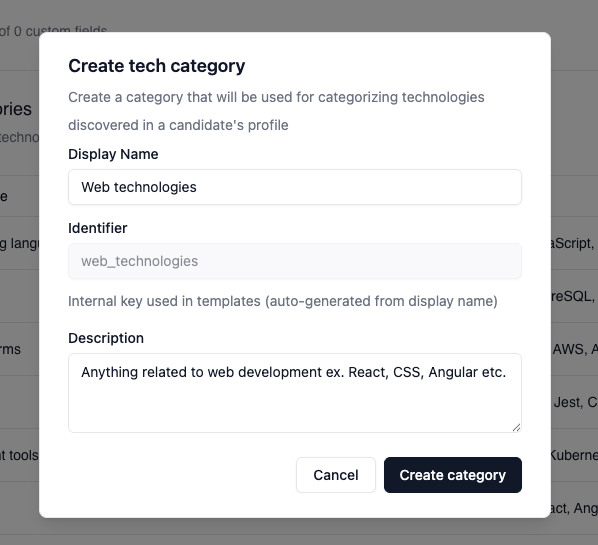
Head to Settings → Organization and you'll find a new Tech categories section. Add a category, give it a display name and a short description, and reorder or rename existing ones to match your requirements.
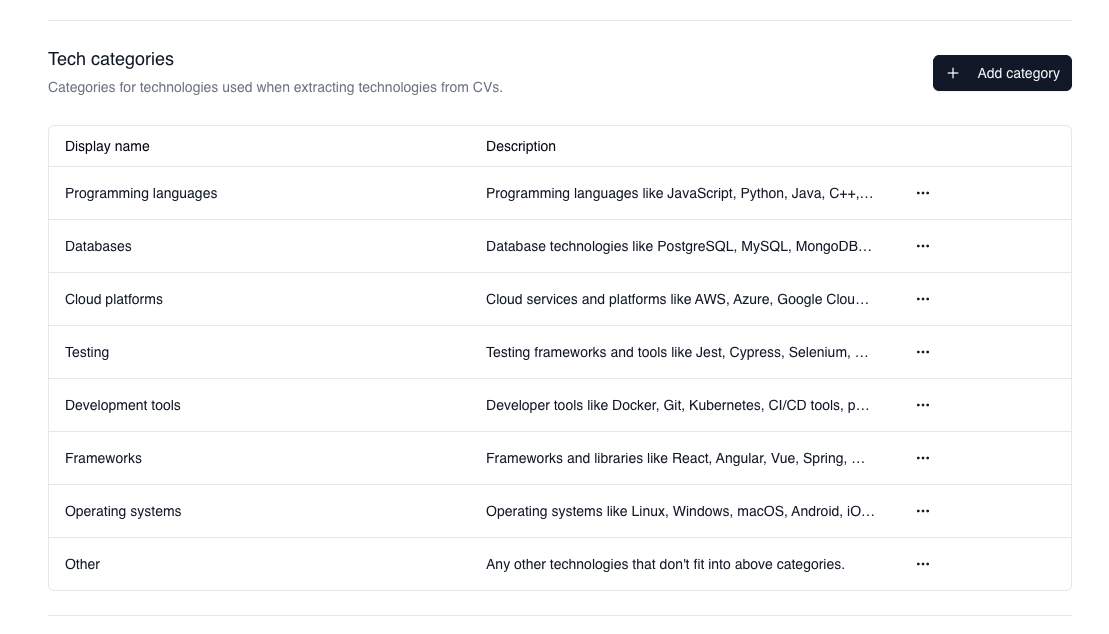
Not happy with results? A one-click Restore default categories action resets everything back to our original set.
Shows up where you're already working
Your categories appear immediately as drag-and-drop buckets in the Technologies section of the profile editor.
And because categorized output only reaches an exported CV once a template references it, we added a "Not in template" badge that flags any category your currently selected template doesn't render — so you'll know before you export, not after a client opens the file.
Two guides to get you there
If you're rolling this out for your team, start with our step-by-step how-to guide — it walks through configuring categories, verifying them in the editor, and wiring your templates up to render them. For the full reference on limits, identifiers, and FAQs, see the full documentation.