Editing a profile
How to review, modify, and fine-tune a profile using the Profile Editor.
Written By Łukasz Myśliński
Last updated 4 months ago
Once a CV has been converted, open it in the Profile Editor to review and refine the extracted data before exporting. You can reach any profile from the Profiles page.
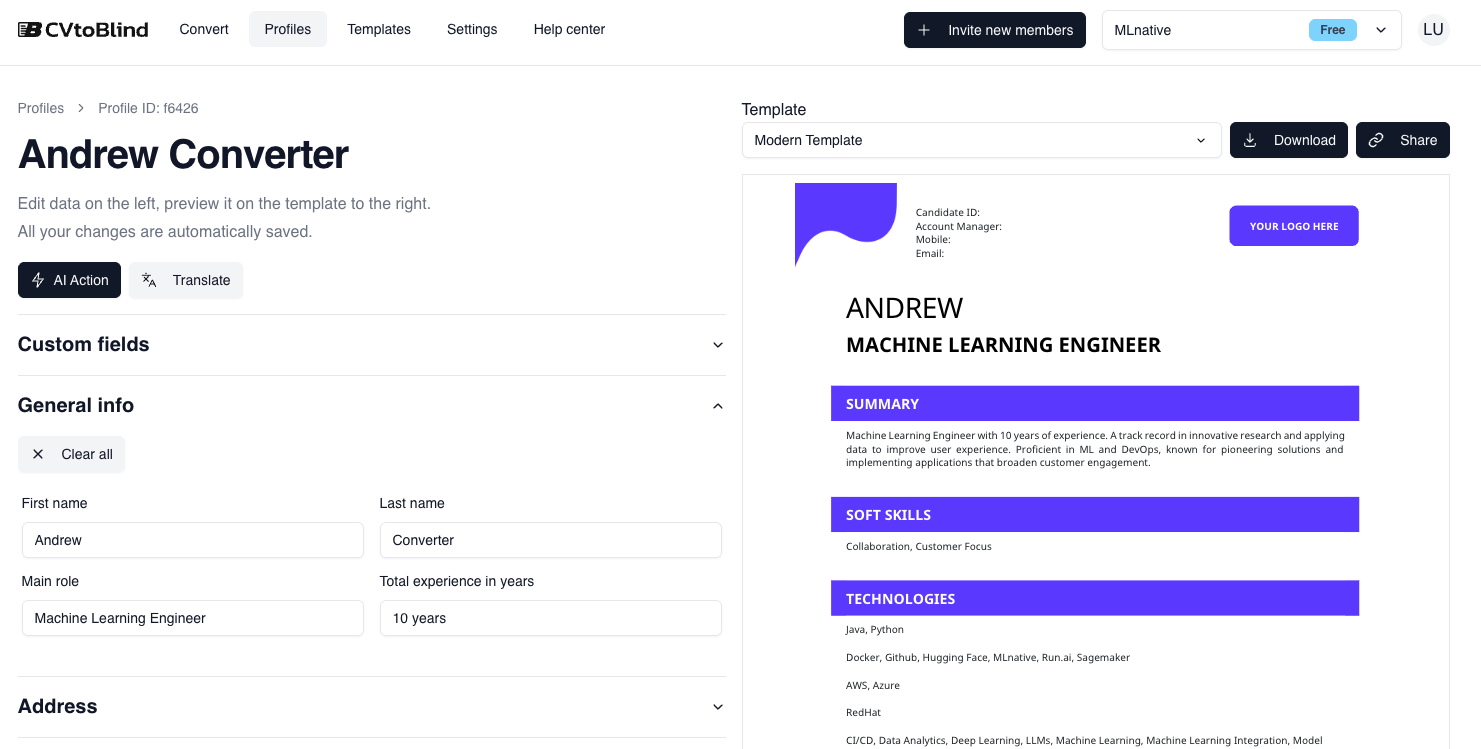
The editor layout
The editor is split into two panes:
Left — the editor panel. All extracted profile sections are listed here: personal info, summary, skills, technologies, experience, education, languages, certifications, and any custom fields. Every field is directly editable — click any value to change it. Changes are applied to the preview in real time.
Right — the template preview. This shows what the exported document will look like using the currently selected template. You can switch between your available templates, set one as the default for future profiles, and export directly as DOCX or PDF from here.
Ways to edit a profile
Manual edits — click any field and type. Every change is instantly reflected in the preview on the right.
AI Actions — apply built-in or custom AI automations to any section. Use these to rewrite a summary, anonymize company names, aggregate technologies, or translate the entire profile into another language.
Translations — translate a profile into any of the supported languages directly from the editor.